
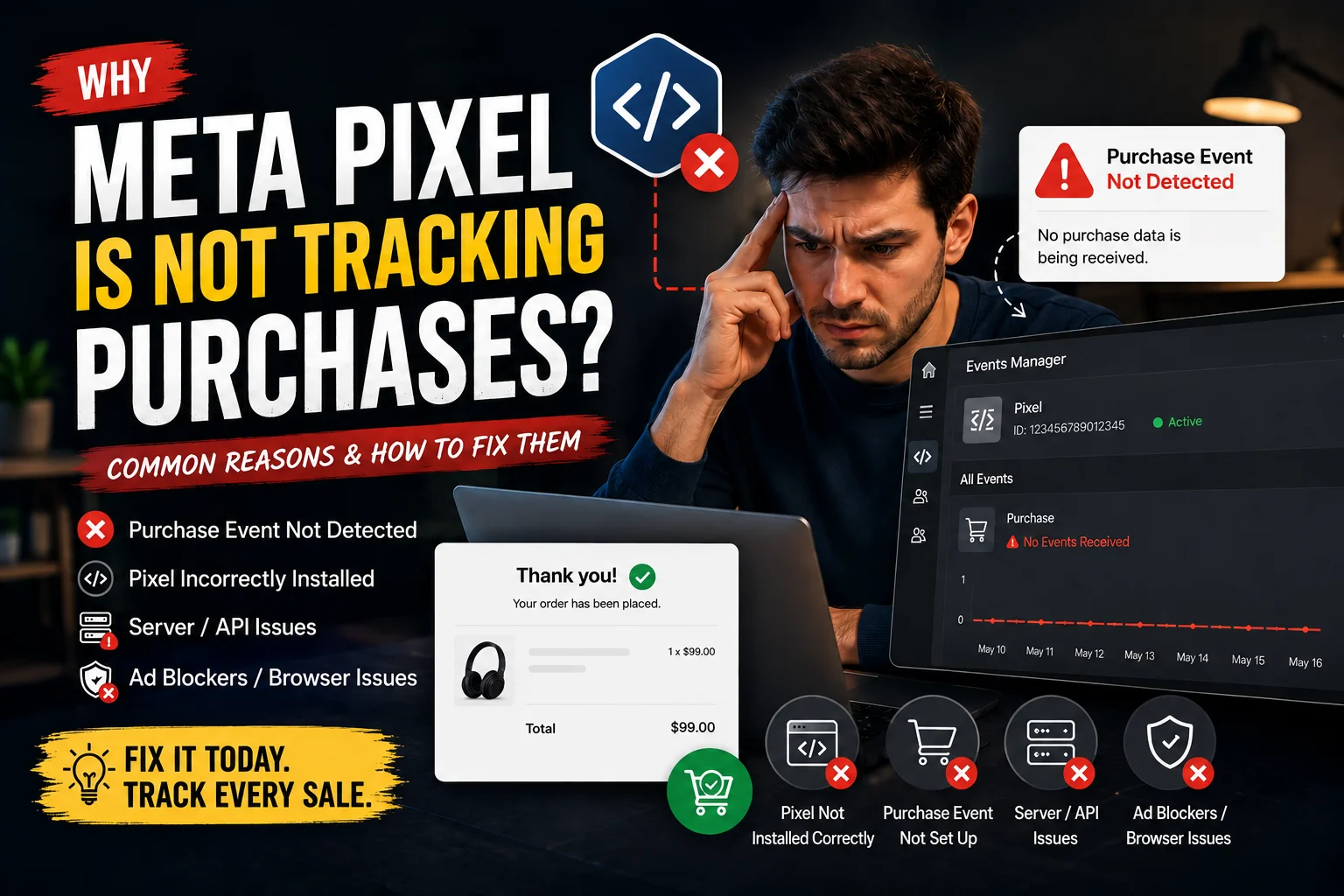
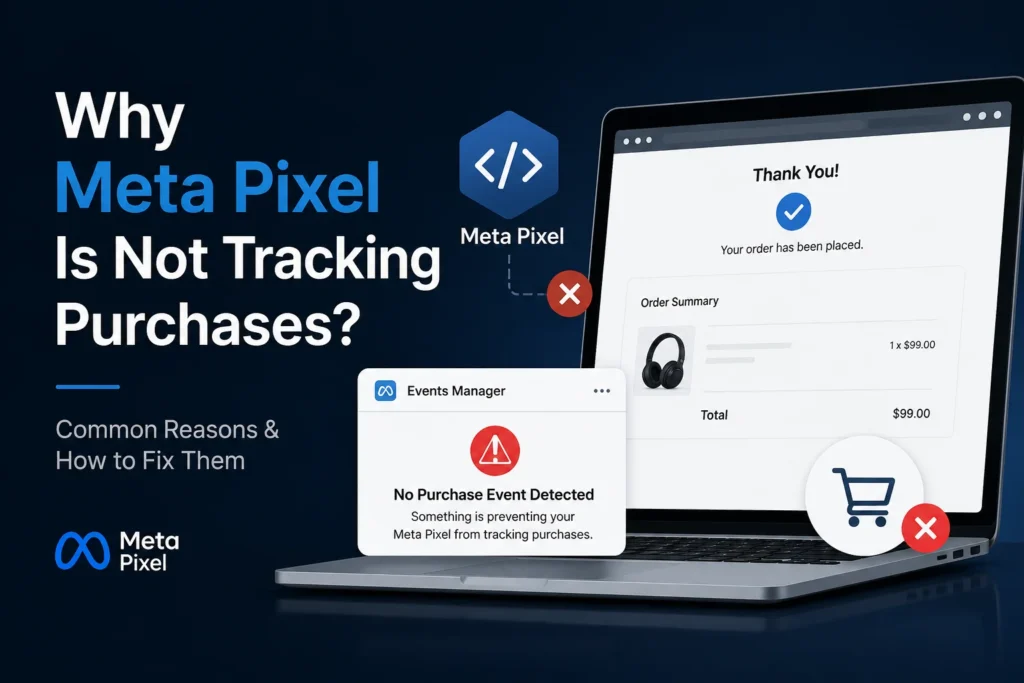
Few things are more frustrating for an ecommerce seller than launching Meta ads, seeing real sales come in, and then opening Ads Manager to find zero purchases tracked. If Meta Pixel is not tracking purchases, your ads are technically running, but Meta’s algorithm has no idea which visitors actually became buyers. Without that signal, Meta cannot optimize your campaigns properly, your cost per result climbs, and your reporting becomes unreliable.
In this detailed guide, we will explain exactly why Meta Pixel is not tracking purchases, how to diagnose the real cause behind it, and the step-by-step fixes that actually work in 2026. We will also cover why browser-based tracking alone is no longer enough, and what the long-term, durable solution looks like for growing ecommerce stores.
What Does It Mean When Meta Pixel Is Not Tracking Purchases?
Before fixing anything, it helps to understand that “Meta Pixel is not tracking purchases” is not always the same problem. In most audits, this issue actually shows up in three different forms, and each one needs a different fix.
Three Different Versions of This Problem
- No purchases tracked at all. The pixel fires on your product pages and cart, but the Purchase event never appears in Events Manager, even after real orders come in.
- Some purchases are tracked, but not all. Meta shows purchase numbers, but they are noticeably lower than your actual order count in Shopify, WooCommerce, or your store backend.
- Purchases appear correctly in testing, but not in live reporting. The event fires when you manually test it, yet real customer purchases still don’t show up properly in Ads Manager.
Knowing which version you are dealing with is the first step, because a broken event mapping and a browser privacy limitation require completely different solutions.
Why Meta Pixel Is Not Tracking Purchases: Common Causes
Here are the most common reasons ecommerce sellers run into this issue in 2026.
1. Pixel Is Not Installed Correctly
The most basic reason Meta Pixel is not tracking purchases is that the base pixel code itself is missing, broken, or blocked. This can happen if the pixel snippet was placed incorrectly in your theme, removed during a theme update, or blocked by a security setting on your site.
2. Purchase Event Not Firing on the Thank-You Page
This is one of the most common causes. Many stores correctly track PageView, ViewContent, and AddToCart events, but the Purchase event specifically fails. This happens because the Purchase event usually needs to fire on the order confirmation or thank-you page, which often has different code, different permissions, and different points of failure compared to the rest of the store.
3. Multiple Pixels Installed on the Same Store
If more than one pixel is installed through manual code, old apps, or theme customizations, you can end up with duplicate or conflicting events. This confuses Meta’s attribution system and can cause some purchase events to be ignored or double-counted.
4. iOS Privacy Changes and App Tracking Transparency
Apple’s iOS privacy framework has made it much harder for pixels to track users who browse or shop from an iPhone. When someone opts out of tracking, browser-based pixel data becomes limited or unavailable for that user, even if the purchase actually happened.
5. Ad Blockers and Browser Restrictions
Browser extensions, built-in tracking prevention (like Safari’s Intelligent Tracking Prevention), and privacy-focused browsers can block the pixel script from loading or sending data at all. This is not a bug in your setup, it is the browser working exactly as intended for the user’s privacy.
6. Aggregated Event Measurement (AEM) Not Configured Properly
Since Meta introduced Aggregated Event Measurement to comply with privacy rules, only a limited number of prioritized events are tracked per domain for iOS users. If your Purchase event is not included or not properly prioritized in this list, it can be filtered out entirely for a large portion of your traffic. In many 2026 audits, this turns out to be the single biggest cause when everything else looks correctly configured.
7. Deduplication Issues Between Pixel and Conversions API
When both the browser pixel and the server-side Conversions API send the same purchase event without a matching event ID, Meta may either count it twice or discard it due to conflicting data. Poor deduplication setup is a common, hidden reason purchase numbers look wrong.
8. Domain Verification or Business Manager Mismatch
If your pixel is not assigned to the same Business Manager that owns your verified domain, Meta may restrict or block event attribution for that domain, even if the pixel is technically firing.
9. Content Security Policy (CSP) Blocking the Script
Some websites have security headers that unintentionally block third-party scripts, including the Meta Pixel. If your developer recently tightened site security, this could be the reason purchase tracking stopped working.
10. Checkout Redirects That Skip the Thank-You Page
Some payment gateways redirect customers to a different confirmation screen, or the sale completes somewhere the pixel cannot see it at all, such as WhatsApp checkout, a manual payment link, or an external payment processor page. In these cases, the Purchase event never has a chance to fire because the customer never lands on the expected page.
How to Diagnose Why Meta Pixel Is Not Tracking Purchases
Guessing the cause wastes time. Instead, follow this diagnostic order.
Step 1: Use Meta Pixel Helper or Tag Assistant
Install the Meta Pixel Helper browser extension and visit your website. Confirm that the base pixel code fires on every page. If it does not fire at all, the base installation itself is broken or blocked, and that is where you should start fixing.
Step 2: Check Events Manager Test Events
Open Meta Events Manager, go to the Test Events tab, and place a real test purchase on your store. If the Purchase event appears in real time during testing, the event mapping itself is technically working. If nothing appears, the event mapping is broken and needs to be rebuilt.
Step 3: Compare Pixel Purchases vs Real Orders
This step tells you whether you are dealing with a completely broken event or simply data loss from privacy restrictions. Compare the number of purchases Meta reports over a set period against your actual order count from your store’s backend. If the numbers are wildly different, or completely missing, you likely have a broken event. If the numbers are close but consistently lower, you are dealing with tracking loss caused by browser privacy limitations, not a bug you can code away.
Step 4: Check Aggregated Event Measurement Priority
Go to Events Manager, select your pixel, open Settings, and review your Aggregated Event Measurement configuration. Confirm that Purchase is included in your top eight prioritized events, and that it is ranked appropriately. Events left out of this list are silently filtered out for a large share of iOS traffic.
How to Fix Meta Pixel Not Tracking Purchases
Once you know the cause, here is how to fix it.
Fix 1: Reinstall and Verify the Base Pixel Code
If the base code is missing or broken, reinstall it either through Meta’s official instructions or through Google Tag Manager, and confirm with Pixel Helper that it fires correctly across your entire site, not just the homepage.
Fix 2: Fix the Thank-You Page Trigger
If your Purchase event depends on a specific URL match in Google Tag Manager, check that the trigger still matches your current thank-you page URL. A simple URL structure change during a theme update is enough to silently break this trigger.
Fix 3: Remove Duplicate or Conflicting Pixels
Audit your website for old tracking apps, leftover manual code, or duplicate theme integrations. Keep only one active pixel connected to your ad account, and make sure it is assigned to the correct Business Manager.
Fix 4: Set Up Conversions API for Server-Side Tracking
This is the most important long-term fix. The Conversions API sends purchase data directly from your web server to Meta, bypassing browser restrictions, ad blockers, and iOS opt-outs entirely. Even when browser-based tracking fails, server-side events still reach Meta reliably.
Fix 5: Configure Aggregated Event Measurement Priority
Make sure Purchase is set as a high-priority event within your top eight AEM events for the domain. This single setting change often recovers a significant share of “missing” iOS conversions.
Fix 6: Verify Your Domain in Business Manager
Confirm your website domain is verified under the same Business Manager as your ad account and pixel. A mismatch here can silently block attribution even when everything else looks correctly set up.
Fix 7: Fix Deduplication with a Matching Event ID
If you are running both the browser pixel and the Conversions API, make sure both send the exact same event ID for the same purchase. This tells Meta to treat them as one event instead of two, preventing both duplication and data conflicts.
Why Server-Side Tracking Is the Long-Term Fix
It is important to understand an uncomfortable truth: sometimes your pixel is not actually “broken.” It may be working exactly as it was designed to. The real problem is that browser based pixel tracking, on its own, is fundamentally limited in a world of iOS privacy restrictions, ad blockers, and cookie limitations. These are not temporary bugs you can patch. They are permanent features of the modern web.
This is why most stores that maintain accurate, reliable purchase tracking in 2026 are not the ones that became experts at troubleshooting pixel code. They are the ones that built tracking infrastructure designed to work regardless of browser cooperation, combining the standard browser pixel with server-side Conversions API data. When both methods work together with proper deduplication, Meta receives a much more complete and accurate picture of your real sales, which directly improves how well your campaigns can optimize.
How to Prevent This From Happening Again
- Audit your pixel setup quarterly, especially after any theme, app, or checkout changes.
- Set up Conversions API early, rather than waiting until tracking problems appear.
- Monitor the gap between Events Manager purchase counts and your real store order counts on a regular basis.
- Avoid installing tracking apps you don’t actively use, since old, forgotten pixels are a common source of duplication.
- Document your tracking setup, so if something breaks after a website update, you can quickly identify what changed.
Common Mistakes to Avoid
- Assuming test events guarantee live tracking. A pixel that fires correctly in Test Events can still under-report on real, live traffic due to privacy restrictions.
- Fixing the pixel without checking the Conversions API. Browser fixes alone will not solve tracking loss caused by iOS privacy settings.
- Ignoring Aggregated Event Measurement settings. This is one of the most overlooked causes of missing iOS purchase data in 2026.
- Leaving old pixel apps installed after switching tracking tools, which creates duplicate or conflicting events.
- Not comparing pixel data to real order data regularly, which means tracking problems can go unnoticed for weeks.
Need Help Fixing Your Meta Pixel Tracking?
Diagnosing pixel issues, setting up the Conversions API correctly, and fixing deduplication problems can get technical fast, and a single misconfigured setting can keep costing you money every day it goes unfixed. If you would rather have this done right the first time, connect with DiziSpark. Our team can audit your current tracking setup, identify exactly why your Purchase events are missing or under-counted, and implement a reliable pixel plus server-side tracking system so Meta gets accurate data and your campaigns can finally optimize the way they should.
Conclusion
When Meta Pixel is not tracking purchases, the fix is rarely a single quick toggle. It usually comes down to identifying which of the common causes applies to your store, whether that is a broken thank-you page trigger, duplicate pixels, missing Conversions API setup, or Aggregated Event Measurement priorities that were never configured. Working through the diagnostic steps in order, starting with the base pixel and ending with server-side tracking, will help you find the real cause instead of guessing. In 2026, the most reliable stores are the ones that stop relying on browser tracking alone and combine it with server side Conversions API data, giving Meta the accurate purchase signal it needs to actually optimize your ad campaigns.
Frequently Asked Questions
Why is my Meta Pixel not tracking purchases even though ads are getting clicks?
This usually means either the Purchase event itself is not firing correctly on your thank-you page, or the event is firing but being lost due to browser privacy restrictions, ad blockers, or iOS opt-outs.
Is Meta Pixel not tracking purchases a coding error or a privacy issue?
It can be either. A completely missing purchase count often points to a broken event or installation issue. A partial, consistently lower purchase count usually points to privacy-related data loss rather than a bug.
Does Conversions API completely fix Meta Pixel not tracking purchases?
It significantly improves tracking accuracy by sending data directly from your server, but it works best when combined with a correctly configured browser pixel and proper event deduplication, not as a complete replacement on its own.
How do I know if I have duplicate Meta Pixels installed?
Check Meta Pixel Helper on your live site. If it detects more than one pixel ID firing on the same page, you likely have duplicate installations that need to be cleaned up.