
Running ads without knowing which ones actually produce sales is like driving with your eyes closed. Meta Ads conversion tracking for WooCommerce closes that gap, connecting every click on Facebook or Instagram back to what actually happened on your store afterward.
This guide walks through how tracking works, which tools handle it best, and how to set it up correctly the first time, since a broken or partial setup quietly wastes ad budget every single day it goes unnoticed.
Table of Contents
ToggleWhat Meta Ads Conversion Tracking Actually Does for WooCommerce
At its core, this tracking measures when someone clicks or views your Facebook or Instagram ad, then takes an action like purchasing, adding an item to cart, or signing up, and links that action back to the ad that caused it. Meta uses this connection to understand which ads actually drive results.
This matters because Meta’s own optimization engine relies entirely on this feedback loop. Without accurate data, the algorithm keeps finding more people who click, not necessarily people who buy, which quietly drains budget toward the wrong audience over time.
Beyond optimization, proper tracking also protects your data from browser limitations. Cookie restrictions, ad blockers, and privacy updates all interfere with basic tracking, which is exactly why a complete setup needs more than a single piece of code.
Meta Pixel vs. Conversions API: Why You Need Both
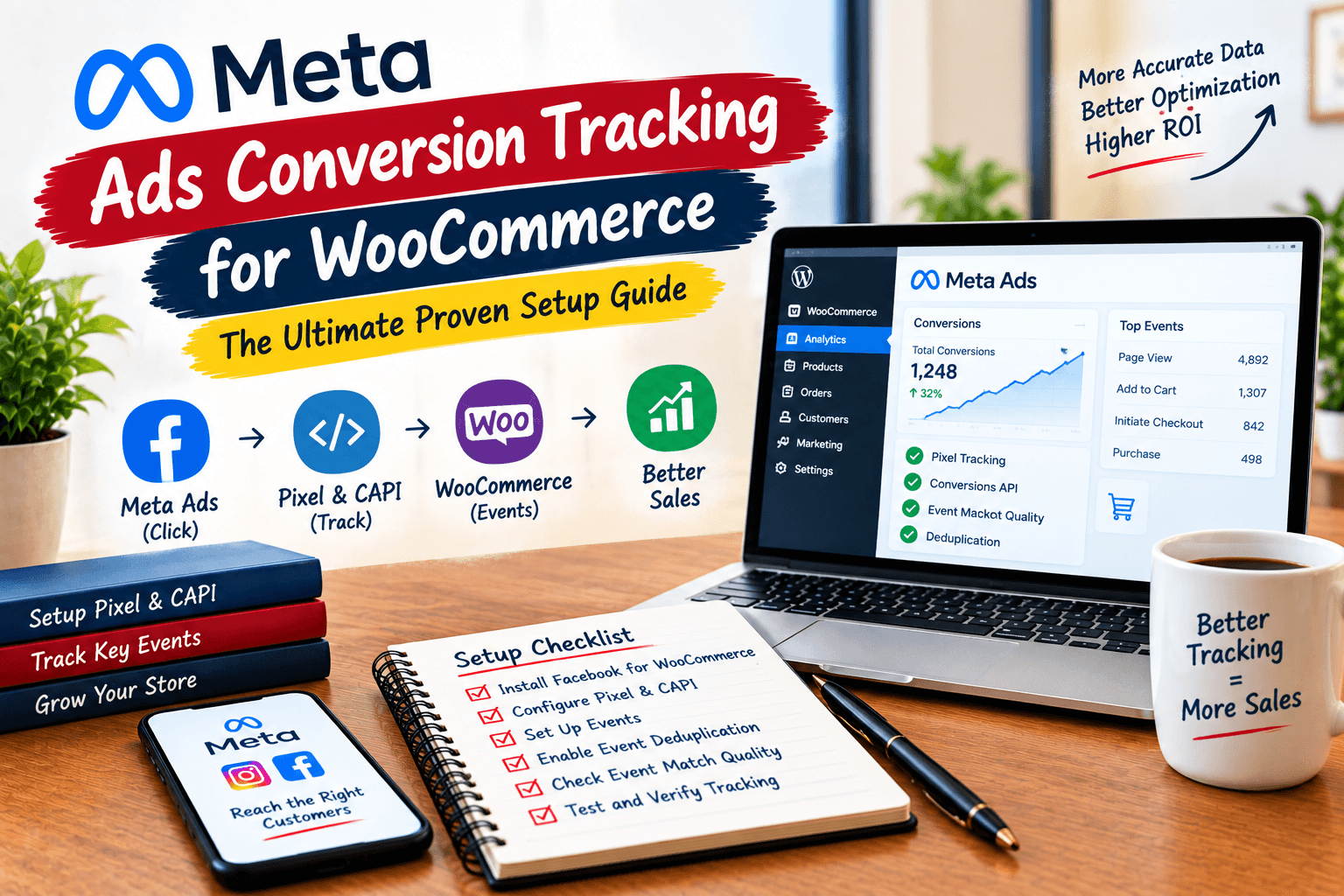
A reliable setup is the foundation of Meta Ads conversion tracking for WooCommerce, because both browser and server signals need to work together. Two separate tools work together to make this tracking reliable. The Pixel is a small piece of JavaScript that runs in the visitor’s browser, capturing actions as they happen on your site in real time.
The Conversions API, often shortened to CAPI, sends the same events directly from your WooCommerce server to Meta instead of relying on the browser. This server-to-server connection keeps working even when a browser blocks tracking scripts or a visitor uses an ad blocker.
Meta explicitly recommends running both together rather than choosing one over the other. They capture overlapping but also genuinely distinct data, and when combined with a shared identifier, Meta automatically merges duplicate signals into a single clean event rather than double-counting.
The practical difference shows up most clearly with iOS privacy restrictions and browser cookie limitations, both of which quietly erode Pixel-only tracking over time. A store relying solely on the Pixel typically sees conversion counts drift lower than actual sales, since a growing share of browsers and devices restrict what the Pixel can capture. CAPI closes this gap by pulling order data directly from your server, which no browser setting can block.
Standard Events You Should Track on WooCommerce
These standard events form the core of Meta Ads conversion tracking for WooCommerce, giving Meta clear signals about how customers move through the buying journey. Standard events are predefined actions Meta already recognizes, which makes them the most useful starting point for any store. Setting these up correctly gives Meta’s algorithm the clearest possible signal about how customers actually move through your funnel.
The core events worth tracking on a typical WooCommerce store include PageView, ViewContent, AddToCart, InitiateCheckout, AddPaymentInfo, and Purchase. Each one captures a specific stage, from someone simply browsing a product to completing a full transaction.
For service-based or lead-generation elements layered onto a store, Lead, CompleteRegistration, Subscribe, and Contact round out the list. Because these are standard, Meta already understands their meaning, which makes them especially valuable for both optimization and reporting inside Events Manager.
Custom Events for Deeper Insights
Standard events cover the basics, but many stores have actions worth tracking that fall outside Meta’s predefined list. Custom events let you define and name these yourself, then fire them through the same pixel code using a dedicated tracking function.
High-value purchase tracking is a common example, flagging orders above a certain threshold so you can build lookalike audiences of your best-spending customers. New-customer and repeat-customer events let you separate acquisition performance from retention performance, which matters enormously for understanding true customer acquisition cost.
Content engagement events, like tracking when someone reads a large portion of a blog post or views high-intent pages such as pricing, can also feed useful signals into retargeting campaigns. These require correct naming and consistent parameters to work well, since Meta’s systems can only use what you define accurately.
Setting Up Tracking: Plugin Options Compared
Several tools exist to handle this setup, ranging from free official plugins to advanced server-side platforms. The right choice depends on your store’s size, technical comfort, and how much ad spend is riding on tracking accuracy.
Facebook for WooCommerce is Meta’s own official plugin, offering basic pixel setup, product catalog sync, and Conversions API connection at no cost. It’s the natural starting point for stores just beginning with Meta advertising or working with a limited budget.
More advanced options like PixelYourSite and Trackify X add server-side tracking, custom event handling, and dynamic audience creation for a modest yearly or monthly fee. Full attribution platforms take this further, unifying tracking across multiple ad channels and connecting spend directly to revenue rather than just conversion events.
Step-by-Step: Facebook for WooCommerce (Official, Free)
The official plugin provides a straightforward starting point for Meta Ads conversion tracking for WooCommerce, especially for stores that do not need advanced custom tracking.
Getting started with the official plugin is the fastest path to basic tracking. Install and activate it from the WordPress plugin directory, then connect it to your Meta Business account during the guided setup.
Once connected, the plugin automatically installs the base Pixel and syncs your product catalog to Meta without requiring manual code. This handles PageView and ViewContent tracking out of the box for most standard WooCommerce themes.
Enabling Conversions API support inside the same plugin adds server-side reliability on top of the browser-based Pixel. This combination covers the fundamentals well, though stores with more complex tracking needs, custom events, or multiple ad accounts often outgrow this basic setup over time.
Step-by-Step: Server-Side Tracking for Better Accuracy
For stores that need more than the basics, a dedicated server-side setup closes the gaps that browser-only tracking misses. This typically involves installing a plugin, connecting your WooCommerce REST API, and authenticating Meta as a data destination.
Start by generating API credentials under WooCommerce Settings, Advanced, REST API, giving the new key read and write permission. These credentials let the tracking platform pull order data directly from your store rather than relying solely on what a browser reports.
Next, authenticate your Meta Business Manager, Pixel, and Ad Account inside the tracking tool, then enable server-side sending specifically. This single toggle is what actually routes events through the Conversions API with identity enrichment, rather than depending on a browser connection that might never fire.
Finally, verify the webhook is active and check that event counts reconcile against your actual WooCommerce order volume. A mismatch here usually points to a deduplication or webhook issue rather than a problem with Meta itself.
Fixing Duplicate Events with Event Deduplication
Proper deduplication is essential to Meta Ads conversion tracking for WooCommerce because the same purchase can otherwise be counted twice. Once both the Pixel and Conversions API are active, the same customer action fires two separate events, one from the browser and one from the server. Left unmanaged, this double-counts conversions and distorts your actual return on ad spend.
Meta solves this through two matching identifiers sent with every event: the event name and a unique event ID assigned to that specific instance. When both identifiers match between the Pixel and CAPI payloads, Meta’s system merges them into a single clean record.
If the event ID is missing or doesn’t match between the two sources, deduplication fails silently. This produces inflated conversion counts and inconsistent reporting, which is why checking this specific detail should be one of the first things verified after any new setup.
Understanding and Improving Event Match Quality
Improving Event Match Quality is another important part of Meta Ads conversion tracking for WooCommerce, because better identity signals help Meta connect events with users more accurately. Beyond simply sending events, the quality of the data attached to each one determines how useful it actually is. Event Match Quality, commonly shortened to EMQ, is Meta’s scoring system for how well your tracking data matches back to real people on Facebook and Instagram.
A higher EMQ score means Meta can connect your conversion events, purchases, leads, sign-ups, to actual people who saw or clicked your ads with more confidence. This directly improves how well the algorithm can optimize your campaigns toward genuinely similar high-value customers.
Key identifiers that improve this score include a hashed email address, a hashed phone number, an external ID like your WooCommerce customer ID, and browser identifiers such as the click ID. Sending these consistently with every Pixel and CAPI event is one of the highest-leverage improvements available to any store running Meta ads.
Purchase events should generally show your strongest EMQ score, since completed orders carry the richest identity data. If Purchase scores lower than an earlier-funnel event like Add to Cart, that’s a strong signal something in the server-side or checkout data pipeline needs attention.
Common Problems and How to Fix Them
A handful of recurring issues account for most broken or unreliable tracking setups. Knowing what they typically mean saves significant troubleshooting time.
No events showing up at all usually points to a Pixel that was never correctly installed, or a Pixel ID that was copied incorrectly during setup. Reinstalling the plugin and double-checking the ID against what’s shown in Meta Events Manager resolves most cases.
Inflated or duplicated conversion counts almost always trace back to missing or mismatched event IDs between the Pixel and Conversions API. Checking that both sources send the exact same identifier for each customer action fixes this in most setups.
A declining or stagnant EMQ score typically means insufficient identity data is being passed with events. Adding hashed email, phone, and external ID parameters consistently across both tracking layers is the most direct fix.
Choosing the Right Tool for Your Store
The right setup depends heavily on how much you’re spending and how sophisticated your tracking needs actually are. A store just starting out with Meta ads should begin with the free official plugin, since it covers the fundamentals without any cost or complexity.
Stores spending meaningful monthly budgets, generally above a few thousand dollars, benefit from dedicated server-side tracking tools that add deduplication, custom events, and identity enrichment beyond what the basic plugin offers. Multi-channel advertisers running Meta alongside Google and other platforms often need a unified attribution layer rather than a Meta-specific plugin alone.
Technical comfort matters too. Plugins offering one-click setup wizards suit non-technical store owners, while more advanced platforms assume some familiarity with API credentials and webhook configuration.
Measuring True ROI Beyond Conversion Counts
Connecting purchase values to Meta Ads conversion tracking for WooCommerce also makes it easier to understand the actual revenue generated from advertising. Raw conversion counts tell you that sales happened, but they don’t always tell you whether Meta ads specifically deserve credit for them. A customer might see a Facebook ad, then later convert through a direct visit or a Google search, and basic Pixel tracking alone can misattribute or completely miss that connection.
Multi-touch attribution tools address this by tracking a customer’s full journey across channels rather than crediting only the last click. For stores running Meta ads alongside Google Ads, email, and organic traffic, this fuller picture prevents budget from shifting away from a channel that’s actually driving assisted conversions further up the funnel.
Connecting conversion data to actual revenue, not just order count, also matters for accurate return on ad spend calculations. A store selling a mix of low and high-margin products can see healthy conversion volume while still losing money on ads, if tracking only reports the number of sales rather than their actual profit contribution. Tying Meta’s Purchase event to real order value, and where possible to margin data, gives a far more honest picture of whether a campaign is actually working.
Conclusion
Meta Ads conversion tracking for WooCommerce isn’t a single checkbox, it’s a layered system: the Pixel for browser-based signals, the Conversions API for server-side reliability, correctly configured deduplication, and consistent identity data feeding Event Match Quality.
Get these pieces working together, and Meta’s algorithm learns from what actually happened in your store rather than a partial, browser-only guess. Skip any one layer, and the resulting gaps quietly cost money in the form of wasted spend and misdirected optimization.
How Dizispark Can Help
Dizispark sets up Meta Ads conversion tracking for WooCommerce stores as a standard part of every campaign launch, combining Pixel and Conversions API from day one rather than treating server-side tracking as an optional upgrade added later.
That includes configuring standard and custom events around a store’s actual sales funnel, verifying event deduplication is working correctly, and monitoring Event Match Quality so campaigns keep improving rather than quietly degrading. For stores with a physical presence alongside their WooCommerce site, Dizispark also keeps GMB aligned with paid tracking data, since search and paid social often influence the same buyer at different points in their journey.
Frequently Asked Questions
How do I set up Meta Ads conversion tracking for WooCommerce?
Setting up Meta Ads conversion tracking for WooCommerce starts with the official Facebook for WooCommerce plugin. Meta Ads conversion tracking for WooCommerce should include the Meta Pixel, Conversions API, standard events, and matching event IDs. A complete Meta Ads conversion tracking for WooCommerce setup should then be tested in Events Manager before increasing ad spend.
Do I need both Pixel and Conversions API for Meta Ads conversion tracking for WooCommerce?
Yes. Meta Ads conversion tracking for WooCommerce works more reliably when browser-based Pixel signals and server-side Conversions API signals work together. Using both gives Meta Ads conversion tracking for WooCommerce better coverage when browser tracking is limited. Properly configured Meta Ads conversion tracking for WooCommerce also uses event IDs to prevent duplicate conversions.
What events should I track with Meta Ads conversion tracking for WooCommerce?
Important events for Meta Ads conversion tracking for WooCommerce include PageView, ViewContent, AddToCart, InitiateCheckout, AddPaymentInfo, and Purchase. These events give Meta Ads conversion tracking for WooCommerce clear signals about customer activity. Tracking the full funnel makes Meta Ads conversion tracking for WooCommerce more useful for optimization and reporting.
Why are my conversions being double counted in Meta Ads conversion tracking for WooCommerce?
Duplicate conversions in Meta Ads conversion tracking for WooCommerce usually happen when the Pixel and Conversions API send the same event without matching identifiers. Correct Meta Ads conversion tracking for WooCommerce requires the event name and unique event ID to match between browser and server events. Fixing these identifiers allows Meta Ads conversion tracking for WooCommerce to merge duplicate signals correctly.
What is Event Match Quality in Meta Ads conversion tracking for WooCommerce?
Event Match Quality is an important measurement within Meta Ads conversion tracking for WooCommerce. It shows how effectively conversion data can be matched with people on Facebook and Instagram. Better identity data can improve Meta Ads conversion tracking for WooCommerce, while hashed email, phone, external ID, and browser identifiers can support stronger matching.
Should I use a free plugin for WooCommerce tracking?
The official Facebook for WooCommerce plugin is a practical starting point for tracking. Stores with more advanced requirements may need dedicated server-side tracking tools. The appropriate solution depends on store size, technical requirements, custom events, and advertising spend.
How do I know if WooCommerce conversion tracking is working?
To verify your tracking, test events using Meta Pixel Helper and Events Manager. Check that events such as ViewContent, Add To Cart, Initiate Checkout, and Purchase are recorded correctly. You should also compare conversion counts with your actual WooCommerce order volume.
Can I track custom events on WooCommerce?
Yes. WooCommerce tracking can measure custom actions beyond standard purchase events. Custom events can help measure high-value purchases, new versus repeat customers, and engagement with high-intent pages. Consistent event names and accurate parameters are important for reliable tracking.