
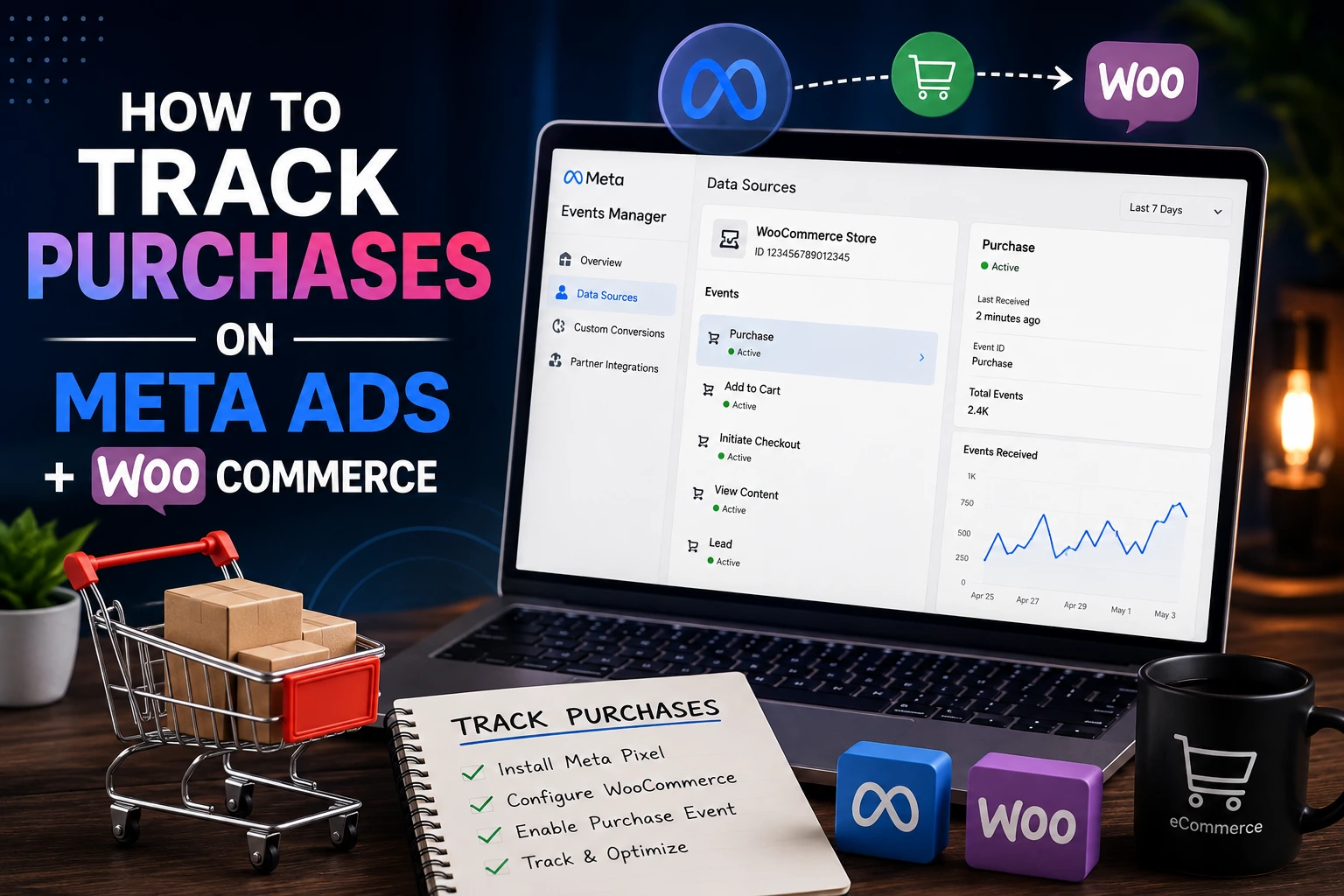
Your WooCommerce store is making sales. But when you open Meta Ads Manager, the purchase numbers look wrong, low, or sometimes just missing completely. This is one of the most common problems WooCommerce store owners run into, and it usually comes down to one thing purchase tracking was never set up correctly in the first place.
This guide will show you how to track purchases on Meta Ads WooCommerce the right way, step by step. We will cover the easiest setup method, the more advanced option using Google Tag Manager, and the one extra step almost every store skips in 2026, which is often the real reason purchase data goes missing.
Table of Contents
ToggleWhy Tracking Purchases on Meta Ads WooCommerce Matters
Without proper tracking, Meta has no way of knowing which ads actually led to a sale. It ends up optimizing your campaigns based on incomplete or wrong data, which usually means higher costs and weaker results over time.
What Happens When Tracking Is Missing or Broken
If your pixel only captures a portion of your real purchases, say 60% of them, Meta’s algorithm ends up learning from an incomplete picture. It starts optimizing for the type of person most likely to trigger a trackable event, not necessarily the type of person most likely to actually buy. Over time, this quietly increases your real cost per sale, even if your reported numbers look okay on the surface.
What You Need Before You Start
- Admin access to your WordPress and WooCommerce store
- Admin access to your Meta Business Suite and Ads Manager
- A Meta Pixel created inside Events Manager
Once you have these three things ready, you can move on to the actual setup.
Method 1 Using the Official Facebook for WooCommerce Plugin (Easiest Way)
This is the fastest and most reliable way to track purchases on Meta Ads WooCommerce, since it is built and maintained specifically for this exact connection.
Step 1 Install the Plugin
From your WordPress dashboard, go to Plugins, then Add New, and search for “Facebook for WooCommerce.” Install and activate the official plugin.
Step 2 Connect to Meta Business Suite
Open the plugin settings and click Connect. Log in with your Meta Business account, then select the correct Business Manager, ad account, and Pixel you want to link to your store.
Step 3 Enable Pixel and Conversions API Together
Inside the plugin settings, turn on both the Meta Pixel and the Conversions API option. This is important. The plugin can automatically implement both at the same time, giving you browser-based tracking and server-side tracking together, without needing to touch any code.
Step 4 Confirm the Purchase Event Is Mapped Correctly
Make sure the plugin is set to fire a Purchase event on your order confirmation, or “Thank You,” page, and that it is passing the order value and currency correctly. A purchase event without a value attached is not useful for tracking real revenue.
Method 2 Using Google Tag Manager (More Control)
If you want more flexibility, or you are already using Google Tag Manager for other tracking, this method works well too.
Step 1 Add the Meta Pixel via GTM
Inside Google Tag Manager, create a new tag using the Meta Pixel base code, and add it to fire on all pages of your site.
Step 2 Set a Purchase Trigger on the Thank You Page
Create a second tag specifically for the Purchase event, and set its trigger to fire only on your WooCommerce order confirmation page URL.
Step 3 Pass Dynamic Parameters
Configure the tag to pass the actual order value, currency, and order ID as variables, rather than hardcoding a fixed number. This ensures Meta receives accurate revenue data for every single purchase, not just a placeholder value.
Step 4 Publish and Test
Once everything is set up, publish your GTM container, then test a real order on your store to confirm the tag fires correctly.
Setting Up Conversions API (CAPI) for Reliable Tracking
Why Pixel Alone Is Not Enough
In 2026, browser-based tracking alone is simply not reliable enough. Ad blockers, iOS privacy settings, and browser restrictions all block a portion of pixel events before they ever reach Meta. The Conversions API sends purchase data directly from your website’s server to Meta, completely bypassing these browser-level restrictions.
Three Ways to Set Up CAPI for WooCommerce
- Native plugin integration: The official Facebook for WooCommerce plugin includes built-in CAPI support, making this the simplest option for most stores.
- Google Tag Manager server-side container: A more advanced setup that relays events without needing custom backend code.
- Third-party tracking plugins: Tools built specifically for ecommerce tracking, which often include CAPI support along with extra reporting features.
Avoid Duplicate Events with Deduplication
If both your Pixel and your CAPI setup send the same purchase event, Meta needs a way to recognize they are the same event, not two separate sales. Make sure your setup includes a matching event ID between the browser pixel and the server-side event. Without this, you risk inflated purchase numbers that don’t match your real WooCommerce orders.
How to Test If Your Purchase Tracking Is Working
Don’t assume your setup is correct just because you followed the steps. Always test it.
Use Meta Pixel Helper
Install the Meta Pixel Helper browser extension, then place a real test order on your store. Watch for the Purchase event firing on your Thank You page, and check that it includes a value and currency.
Use Meta Events Manager Test Events
Inside Events Manager, open the Test Events tab, and place another test purchase. This shows you in real time whether the event is reaching Meta correctly, including which parameters are attached to it.
Compare WooCommerce Orders vs Meta Reported Purchases
Once your store has been running for a week or two, compare your actual WooCommerce order count against what Meta Ads Manager reports for the same period. If the gap between the two is consistently more than about 15%, something in your setup still needs fixing.
Common Mistakes That Break WooCommerce Purchase Tracking
- Caching your Thank You page. This is one of the most common causes of missing or duplicated purchase events. Always exclude your checkout, upsell, and order confirmation pages from any caching plugin.
- Missing the value parameter. A Purchase event that fires without an order value attached is essentially useless for real revenue tracking.
- Running Pixel and CAPI without deduplication. This can lead to purchases being counted twice, giving you an inflated, inaccurate picture.
- Testing in a browser with ad blockers or extensions active. Always test tracking in a clean, private browsing session to get an accurate result.
- Never comparing platform data with real store orders. Set a habit of checking this weekly, so tracking issues get caught early instead of going unnoticed for months.
Conclusion
Learning how to track purchases on Meta Ads WooCommerce properly comes down to a few clear steps install a reliable Pixel and Conversions API setup, make sure your Purchase event carries the correct value and currency, avoid caching issues on your Thank You page, and test everything before trusting the numbers. Once this is set up correctly, Meta gets the accurate data it needs to actually optimize your campaigns, which means better targeting, lower wasted spend, and numbers you can actually trust when making budget decisions.
Need Help Setting Up Purchase Tracking for Your WooCommerce Store?
Getting Pixel and Conversions API working together correctly, without duplicate or missing events, takes careful setup and testing. If you want this done right the first time, connect with DiziSpark. Our team can set up your WooCommerce tracking properly, confirm your purchase data matches your real orders, and make sure Meta has the accurate data it needs to actually optimize your ad campaigns.
Frequently Asked Questions
Do I need both the Meta Pixel and Conversions API for WooCommerce?
Yes. They are not alternatives to each other, they work together. The Pixel captures browser-side events where it can, while the Conversions API fills in the gaps caused by ad blockers and iOS privacy restrictions.
Why are my WooCommerce purchases not showing up in Meta Ads Manager?
This is usually caused by a cached Thank You page, a missing or broken Purchase event, or a Pixel and CAPI setup that isn’t configured correctly. Testing with Meta Pixel Helper is the fastest way to find the real cause.
Is the official Facebook for WooCommerce plugin enough, or do I need Google Tag Manager too?
For most stores, the official plugin is enough, since it handles both Pixel and CAPI setup automatically. Google Tag Manager is useful if you want more control or are already managing other tracking tags through it.
How do I know if my Meta Ads purchase tracking is accurate?
Compare your real WooCommerce order count with what Meta Ads Manager reports for the same time period. If the numbers are consistently more than 15% apart, your tracking setup likely needs to be fixed