
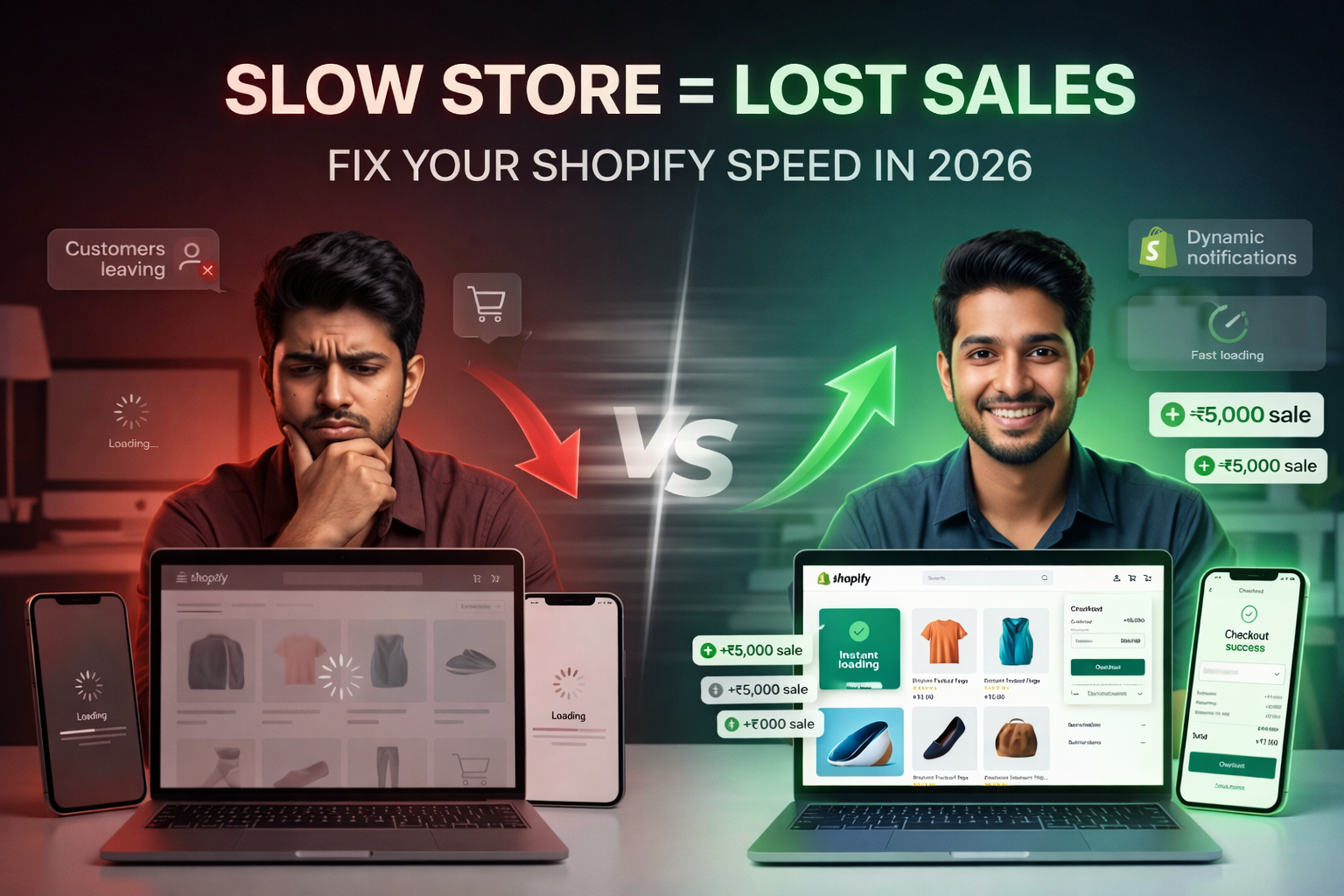
If you have a Shopify store and you want to know how to optimize Shopify store speed, you are in the right place. A slow store is one of the biggest reasons online shops lose customers and sales every single day. People do not wait. If your store takes more than 3 seconds to open, most visitors will close it and go to a competitor.
The numbers make this very clear. According to a study shared by Shopify, 70% of shoppers say that a slow website makes them not want to buy. Stores that load in under 2 seconds have conversion rates 2.5 times higher than stores that take 5 seconds or more. And according to research by Deloitte, even a 0.1 second delay hurts the entire buying process for a customer. That is how sensitive people are to speed in 2026.
The good news is that most speed problems on Shopify are fixable without being a tech expert. In this guide, we will walk you through 10 proven ways to make your Shopify store faster, rank higher on Google, and turn more visitors into paying customers.
Table of Contents
ToggleWhy Shopify Store Speed Matters So Much in 2026
Speed is not just about making your store feel nice. It directly affects three very important things for your business. The first is your Google ranking. Since 2021, Google has used speed as a ranking factor through what it calls Core Web Vitals. A slow store will rank lower on Google, which means fewer people find it. The second is your conversion rate. Every second of delay reduces the chance that a visitor will buy from you. The third is your Google Ads cost. If you run paid ads, a slow landing page lowers your Quality Score, which means you pay more per click.
In India, over 75% of e-commerce traffic comes from mobile phones. Mobile connections are slower than desktop, which makes speed even more important. If you have been wondering how to optimize Shopify store speed, the answer starts with understanding that every second you save is money you earn.
Quick Overview — 10 Speed Fixes at a Glance
Here is a simple table showing all 10 speed fixes, the tools to use, how much they help, and how hard they are to do.
| Speed Fix | Tool to Use | How Much It Helps | Difficulty |
| Compress Images to WebP | TinyPNG, Squoosh, ShortPixel | Very High — cuts 60 to 70% page weight | Easy |
| Remove Unused Apps | Shopify Admin App List | Very High — each app adds load time | Easy |
| Switch to Fast Theme | Shopify Theme Store | High — fast themes load in 1.1 seconds | Medium |
| Enable Lazy Loading | Built into most Shopify themes | High — reduces initial page load | Easy |
| Minify CSS and JavaScript | TinyIMG, Speed Boostr app | Medium — reduces file size | Medium |
| Reduce Redirects | Google Search Console | Medium — each redirect adds delay | Easy |
| Use System Fonts | Theme Settings | Medium — cuts font loading time | Easy |
| Remove GIF Files | Replace with WebP or MP4 video | High — one GIF can add 10MB to page | Easy |
| Fix Core Web Vitals | Google PageSpeed Insights | Very High — direct Google ranking impact | Medium |
| Test Speed Regularly | Shopify Speed Score, GTmetrix | Essential — shows what to fix next | Easy |
10 Ways to Optimize Your Shopify Store Speed
Way 1. Compress and Optimize Your Images
Images are the number one reason most Shopify stores are slow. They make up 60 to 80% of a page’s total weight. If you upload large, uncompressed images, your store will always be slow no matter what else you fix. This is the single most important step in learning how to optimize Shopify store speed.
The best thing you can do is convert all your images to WebP format. WebP images are 25 to 34% smaller than JPEG and PNG images but look exactly the same quality. Before uploading any image, compress it using free tools like TinyPNG or Squoosh. Make sure your product images are not larger than 2048 by 2048 pixels. For thumbnails, 800 by 800 pixels is more than enough. Never upload a 5000 pixel image for a 400 pixel spot on your page. That is wasted load time. Shopify automatically serves images through its fast global CDN, but it does not compress them for you. That part is your job.
Way 2. Remove Apps You Are Not Using
Every single app you install on your Shopify store adds extra code and scripts that load every time someone visits your store. Even apps you installed once and never used again are still loading in the background and slowing your store down. This is one of the easiest and most effective speed fixes available.
Go to your Shopify Admin, click on Apps, and look at everything installed. Ask yourself honestly: am I actually using this app and is it helping me make sales? If the answer is no, delete it. According to Shopify’s own help center, too many apps loading assets on your store is one of the most common causes of slow performance. Even removing just 3 to 5 unused apps can make a noticeable difference in your store speed.
Way 3. Switch to a Fast and Lightweight Theme
Your Shopify theme is the foundation of everything. If you are using a heavy theme that is packed with animations, sliders, video backgrounds, and fancy effects, your store will always struggle to load fast. Testing of over 200 Shopify themes has shown that the fastest themes load the first visible content in just 1.1 seconds, while heavy themes can push load times past 4 to 5 seconds.
Shopify’s free theme called Dawn is one of the fastest available and is built specifically for speed. Other fast options include Impulse and Prestige. Before buying any paid theme, test its speed using Shopify Speed Insights. If your current theme is causing big slowdowns, switching to a lighter one is one of the best single changes you can make. Always test a new theme thoroughly before going live.
Way 4. Turn On Lazy Loading for Images and Videos
Lazy loading is a simple technique that tells your store to only load images and videos when a visitor actually scrolls down to see them. Instead of loading every single image on the page the moment someone opens your store, it loads only what is visible on screen first. This makes the top of your page load much faster, which is what Google and your customers see first.
The good news is that lazy loading is already built into most modern Shopify themes. You just need to make sure it is turned on in your theme settings. One important thing to remember is that your main image at the top of the page, called the hero image, should not have lazy loading. That image needs to load immediately. Only images below the first visible area should be lazy loaded.
Way 5. Remove or Replace GIF Files
GIF files are extremely heavy. A single 2-second GIF animation can have 20 or more frames and add over 10 megabytes to your page weight. If you have even 2 or 3 GIFs on your homepage, that alone could be making your store significantly slower. Many store owners use GIFs to show products from different angles or to add visual interest without realizing how much they cost in load time.
Replace GIFs with either static WebP images or short MP4 video clips. MP4 videos are much smaller than GIFs and look better. This is one of the quickest wins when figuring out how to optimize Shopify store speed without doing any complicated technical work.
Way 6. Minify Your CSS and JavaScript Files
Minifying means removing all the extra spaces, line breaks, and unnecessary characters from your CSS and JavaScript code files. These extras do not affect how your store looks or works, but they make your files bigger and slower to load. Minified files are smaller and load faster.
You do not need to do this manually. Apps like TinyIMG and Speed Boostr can handle this for you directly from your Shopify admin. Shopify also already minifies many of its own core files automatically. But any custom code added by apps or developers may not be minified. Cleaning these up can reduce your total page weight and improve load times noticeably.
Way 7. Reduce Unnecessary Redirects
A redirect is when your store sends a visitor from one URL to another before they see the actual page. Every redirect adds an extra step and extra loading time. If your store has a lot of old redirects from changed product URLs, deleted pages, or old promotional links, these are slowing down your store without you even knowing it.
Check your redirects in Shopify Admin under Online Store and then Navigation. Remove any redirects that are no longer needed. Use Google Search Console to find pages that are redirecting when they should not be. Each redirect you remove saves a small but real amount of loading time, and many small improvements add up to a faster store overall.
Way 8. Use System Fonts or Limit Custom Fonts
Custom fonts look great but they add extra files that your store needs to download before the text on your page can show up. If you are using 3 or 4 different custom fonts, that is 3 or 4 extra files loading every time someone visits your store. System fonts like Arial, Georgia, and Helvetica are already on every device and load instantly without any download.
If you want to use a custom font because it matches your brand, that is fine. But limit yourself to a maximum of 2 fonts. Use Shopify’s built-in font library instead of loading external Google Fonts if possible. And if you do use Google Fonts, make sure you preload the most important one in your theme settings so it does not delay your page rendering.
Way 9. Fix Your Core Web Vitals
Core Web Vitals are three speed measurements that Google uses to rank websites. The first is LCP which stands for Largest Contentful Paint. It measures how fast your main image or headline loads. Google wants this to happen in 2.5 seconds or less. The second is CLS which stands for Cumulative Layout Shift. It measures how much your page jumps around while loading. The third is INP which stands for Interaction to Next Paint. It measures how quickly your page responds when someone clicks something.
You can check all three of these scores for free using Google PageSpeed Insights at pagespeed.web.dev. Type in your Shopify store URL and it will show you your scores and tell you exactly what to fix. This is one of the most important steps in how to optimize Shopify store speed for Google rankings because these three scores directly affect where your store appears in search results.
Way 10. Test Your Store Speed Regularly and Keep Improving
Speed optimization is not something you do once and forget. Every time you install a new app, add a new product image, or change your theme, your speed can change. The stores that stay fast are the ones that check their speed regularly and fix problems as they appear.
Check your Shopify speed score in your Admin panel under Analytics and then Web Performance. Run a test on Google PageSpeed Insights every month. Use GTmetrix for a more detailed breakdown of what is slowing your store. Set a target score of 70 or above on Shopify and 80 or above on Google PageSpeed. If your score drops, go back to the list of fixes in this blog and find what changed. Consistent monitoring is what keeps a fast store fast.
What is a Good Shopify Speed Score?
Shopify gives every store a speed score from 1 to 100. A score of 50 or below means your store is slow and needs work. A score of 50 to 75 is average. A score of 75 to 90 is good. A score of 90 or above is excellent. Most well-optimized Shopify stores sit between 70 and 85. Do not chase a perfect 100 score as that is almost impossible with a real store. Focus on getting above 70 and keeping it there.
On Google PageSpeed Insights, aim for a score of 70 or above on mobile and 80 or above on desktop. Mobile is more important because most of your customers are shopping on their phones. If you have to choose between optimizing for desktop or mobile, always optimize for mobile first.
Conclusion
Now you know exactly how to optimize Shopify store speed with 10 proven steps that actually work. Start with the easiest and biggest wins first. Compress your images and convert them to WebP. Remove apps you are not using. Switch to a fast lightweight theme. Turn on lazy loading. Remove GIF files. After that, work through the more detailed fixes like minifying code, reducing redirects, fixing fonts, and improving your Core Web Vitals.
Every second you cut from your store’s load time is more visitors staying, more products being seen, and more sales being made. A store that loads in 2 seconds will always outperform one that loads in 5 seconds, even if the products and prices are identical. Speed is a competitive advantage that most Shopify store owners ignore. Fix your speed today and start seeing the difference in your sales numbers.
Is Your Shopify Store Losing Sales Because of Slow Speed?
A slow Shopify store is not just annoying for your customers. It is losing you real money every single day. At DiziSpark, we help Shopify store owners fix their speed, improve their Google rankings, and get more sales from the same traffic. We do a full audit of your store, find everything that is slowing it down, and fix it properly. Whether you need image optimization, app cleanup, theme switching, or a full speed overhaul, we handle it all. Visit us at Dizispark and Grow Your Store With Me.
Frequently Asked Questions
How to optimize Shopify store speed quickly?
The fastest ways to optimize Shopify store speed are to compress all images to WebP format, remove unused apps, and switch to a lightweight theme like Dawn. These three changes alone can make a big difference in your store speed within a day.
What is a good Shopify speed score?
A Shopify speed score above 70 is good. Above 85 is excellent. On Google PageSpeed Insights, aim for 70 or above on mobile and 80 or above on desktop. Mobile score is more important because most Shopify traffic in India comes from phones.
How do I check my Shopify store speed?
You can check your Shopify speed score in your Admin panel under Analytics and then Web Performance. You can also use Google PageSpeed Insights at pagespeed.web.dev and GTmetrix at gtmetrix.com. Both are free and give you detailed reports on what is slowing your store.
What is the fastest free Shopify theme?
Dawn is one of the fastest free Shopify themes available. It is built by Shopify with speed as the top priority and uses Online Store 2.0 technology. Other fast themes include Impulse and Prestige. Always test a theme’s speed before switching to make sure it meets your needs.
Does Shopify store speed affect Google ranking?
Yes, directly. Google uses Core Web Vitals, which include loading speed, visual stability, and responsiveness, as ranking factors. A slow Shopify store will rank lower in Google search results, which means fewer people find it. Improving your speed improves your SEO ranking at the same time.